Dolphin Anty Fingerprint Browser
Legacy guide: screenshots and helper-tool steps may differ from the current product.
This is an English translation of a legacy guide. For the original wording, read the Chinese original.
Setting up a Proxy302 proxy in the Dolphin Anty fingerprint browser requires an internet connection that allows access to international sites. If you do not have such access, please refer to the Connection tutorial for non-overseas environments; if you already have access, please refer directly to the Connection tutorial for overseas environments.
Dolphin Anty fingerprint browser address: https://anty.dolphin.ru.com/cn/
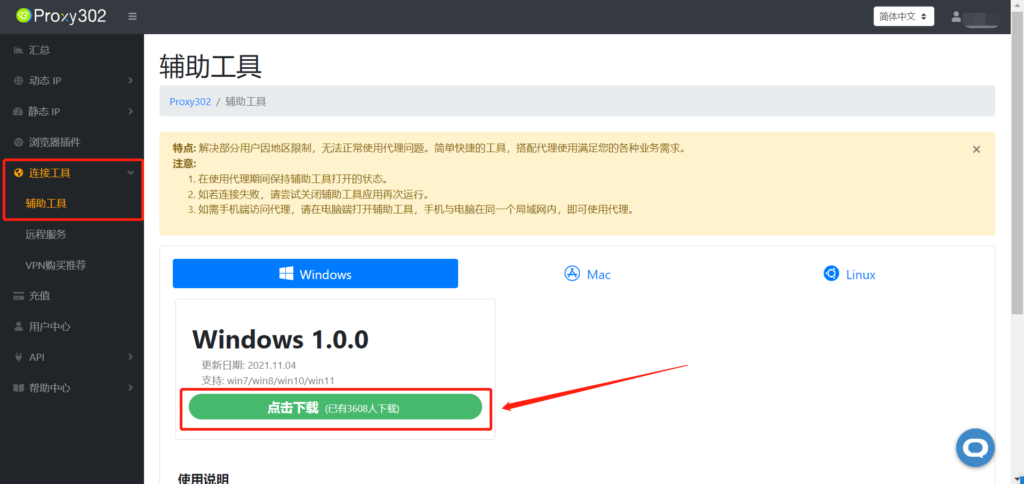
Connection tutorial for non-overseas environments1. Log in to the Proxy302 client, open [Connection Tools]-[Auxiliary Tools], and click Download.
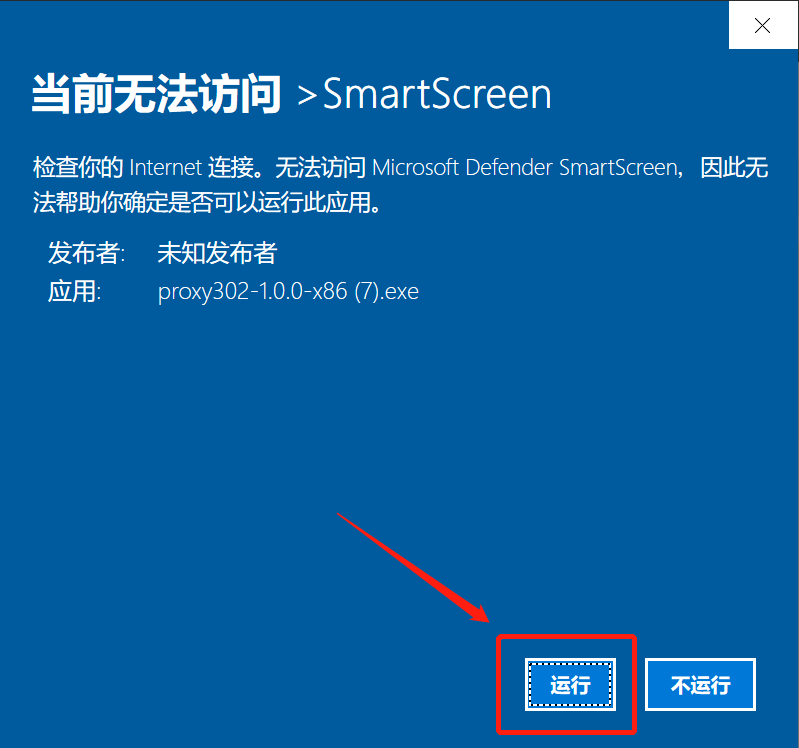
2. Click the [Run] button.
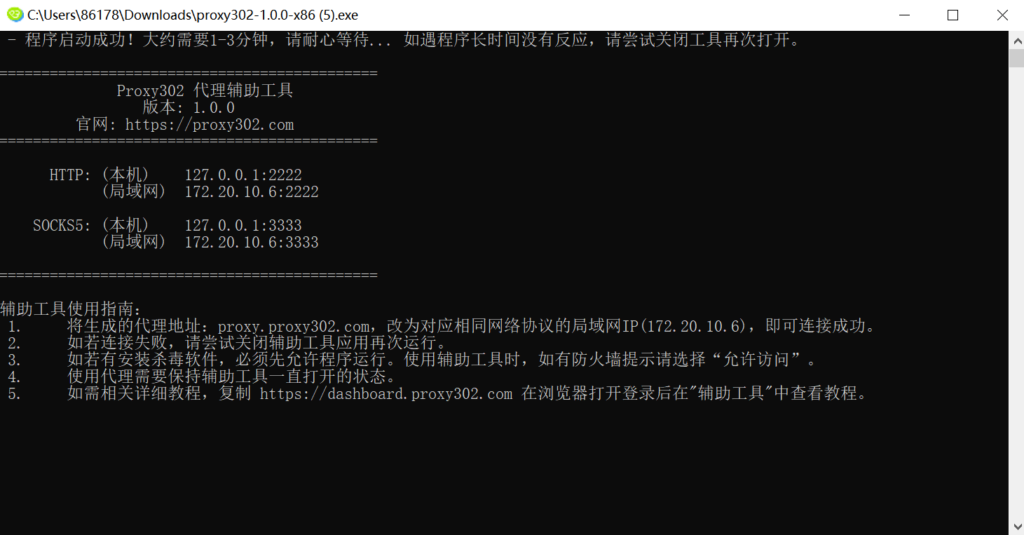
3. Wait for it to load. Once loaded successfully, as shown in the image below, the auxiliary tool has started. Minimize it to keep the tool running in the background.
4. Open the Proxy302 client and generate a proxy.
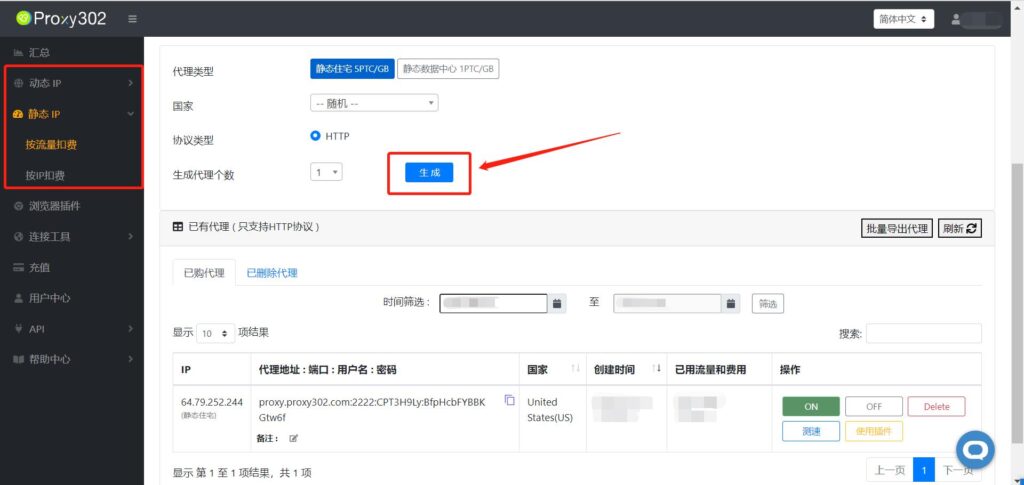
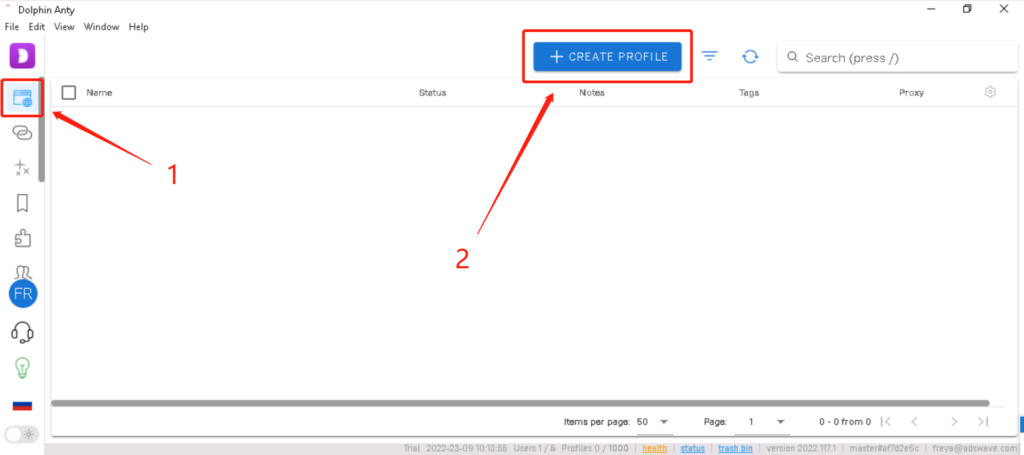
5. Log in to the Dolphin Anty fingerprint browser, open the [Browser] interface, and click the [Create profile] button.
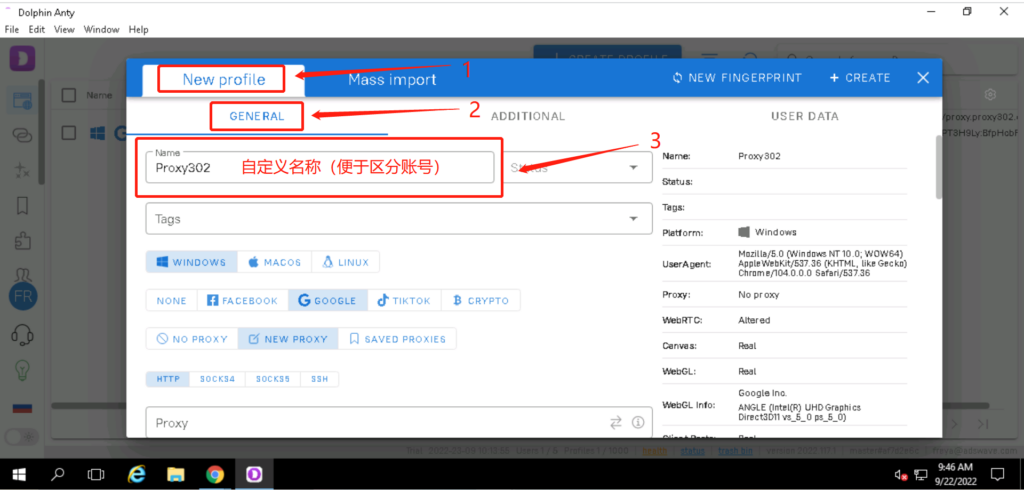
6. Click [New profile]-[General settings] and enter the account name.
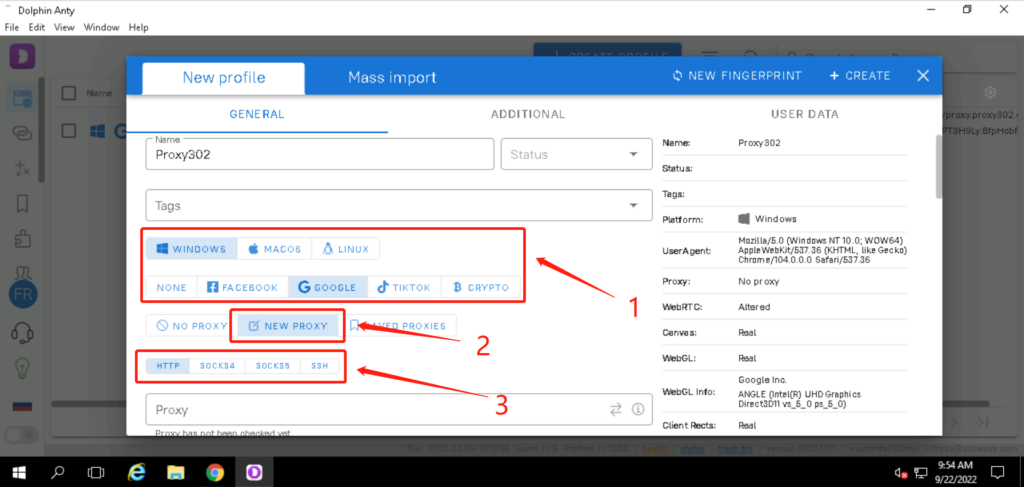
7. Select the corresponding computer system and the website to visit, click [Add proxy], and select the corresponding protocol (HTTP/SOCKS5).
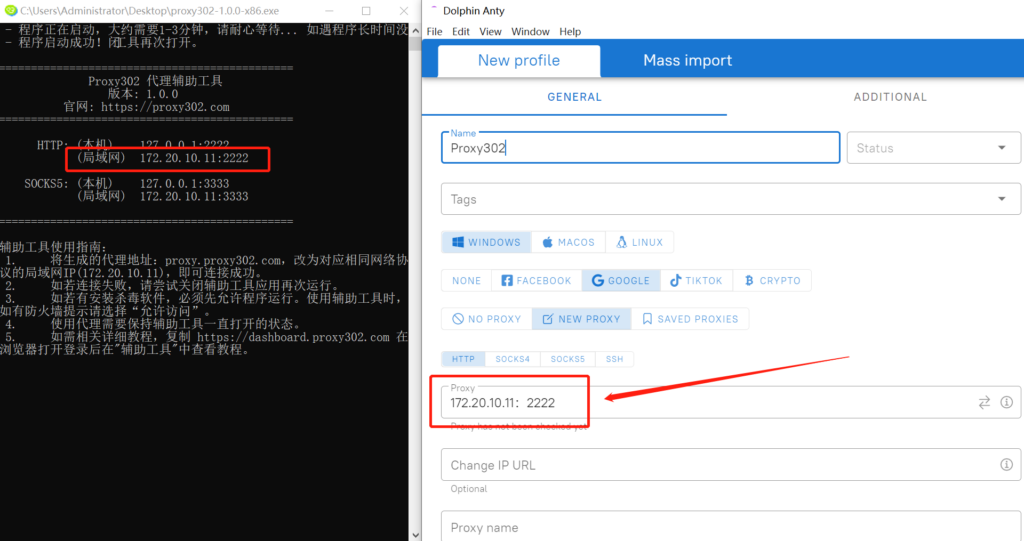
8. Open the auxiliary tool, copy the LAN address and port, and fill them into the [Proxy] input box in the Dolphin Anty fingerprint browser.
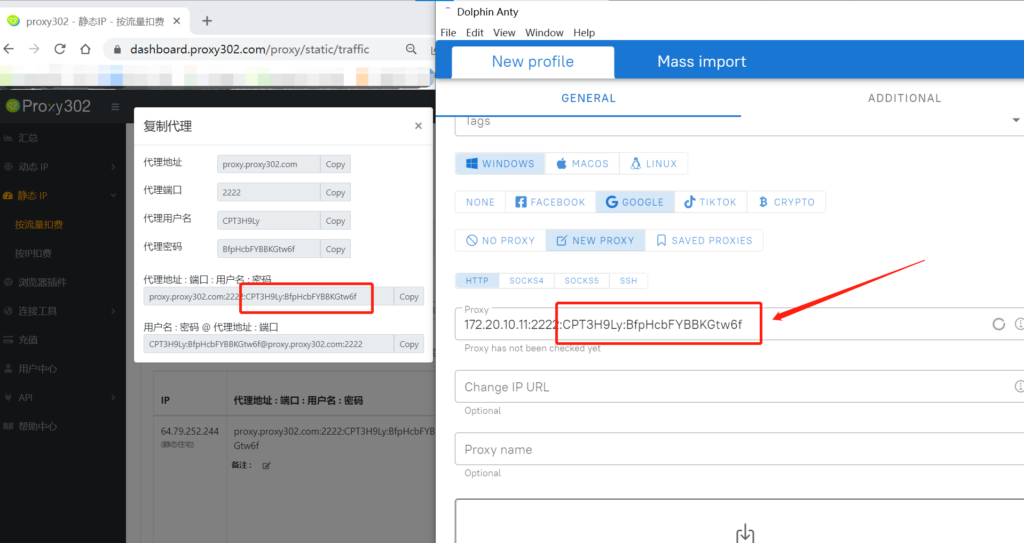
9. Copy the [Username:Password] from the Proxy302 client and paste it into the [Proxy] input box in the Dolphin Anty fingerprint browser. (Note: Use the English colon : as the separator)
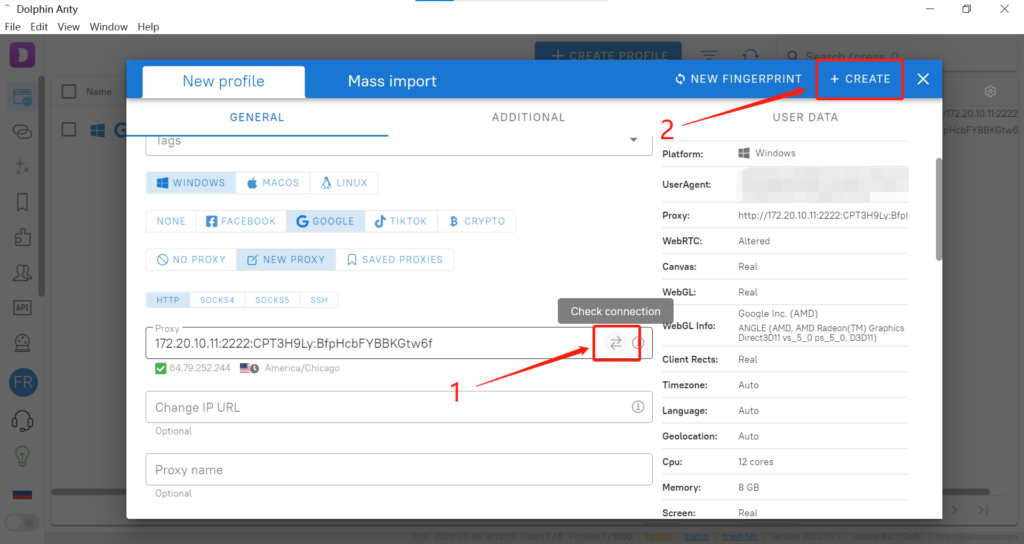
10. Click the icon on the far right to check if the proxy is connected successfully. If connected, detailed proxy information will appear below the [Proxy] input box. Click the [Create] button in the top right corner to save the data.
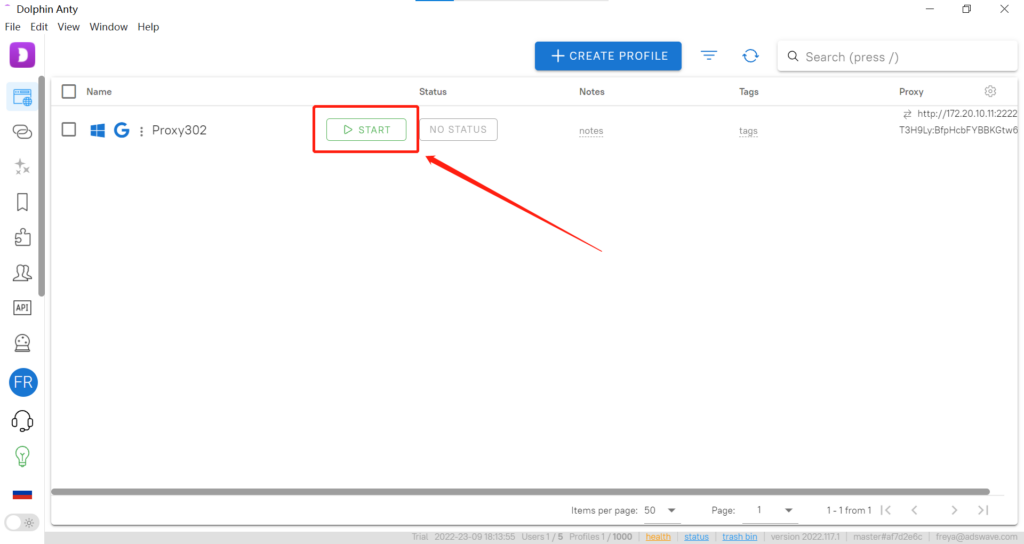
11. Click the [Open] button for the corresponding entry.
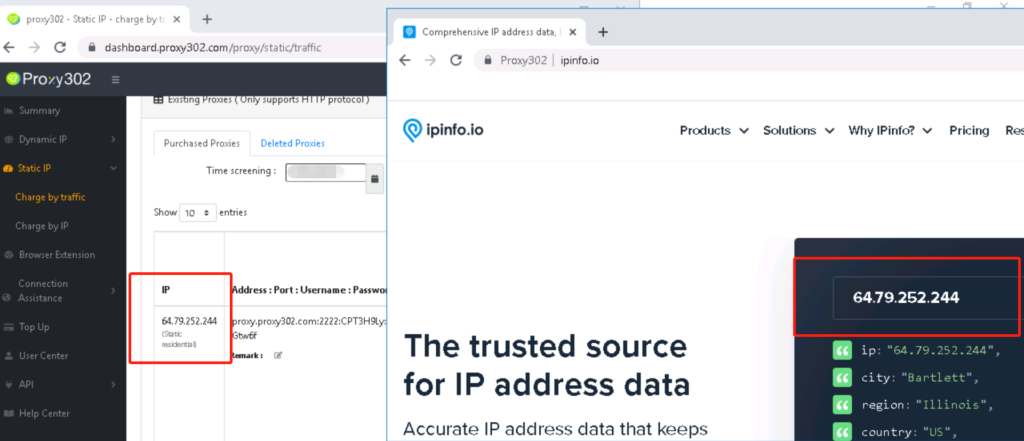
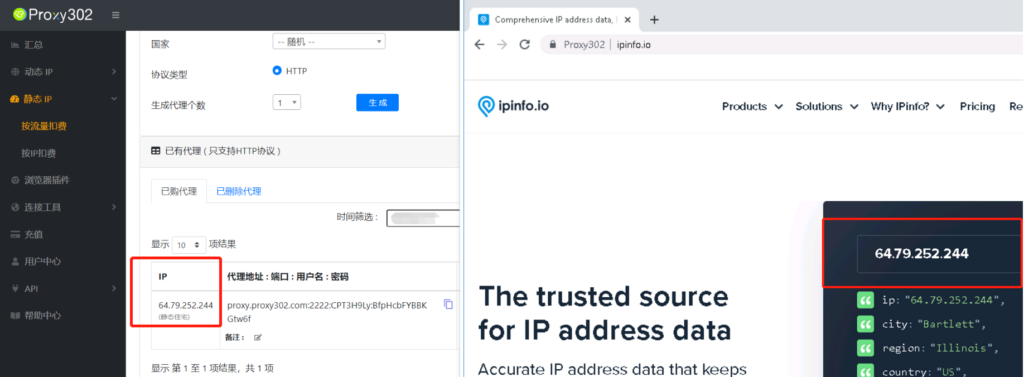
12. Enter "ipinfo.io" in the browser. If the IP address on the page matches the configured proxy IP, the proxy is set up successfully.
Connection tutorial for overseas environments
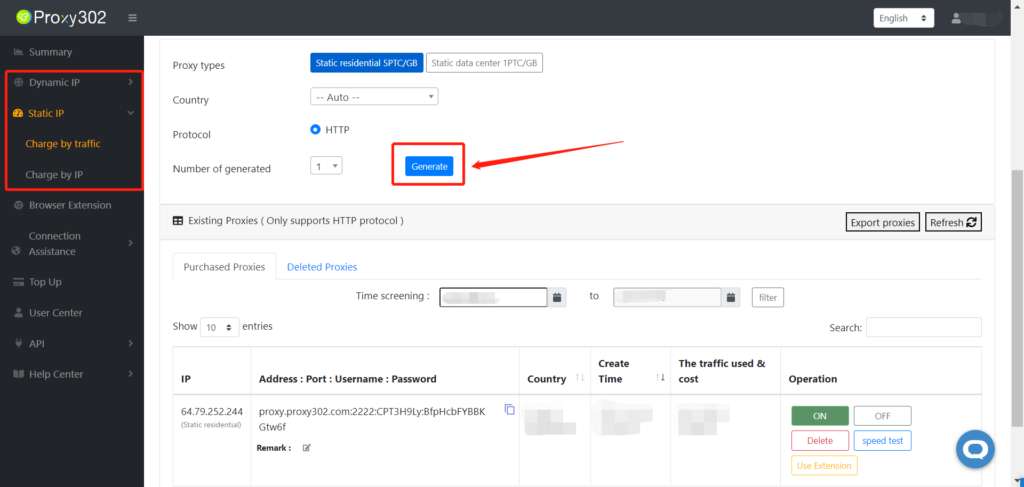
1. Log in to the Proxy302 client and click to generate a proxy.
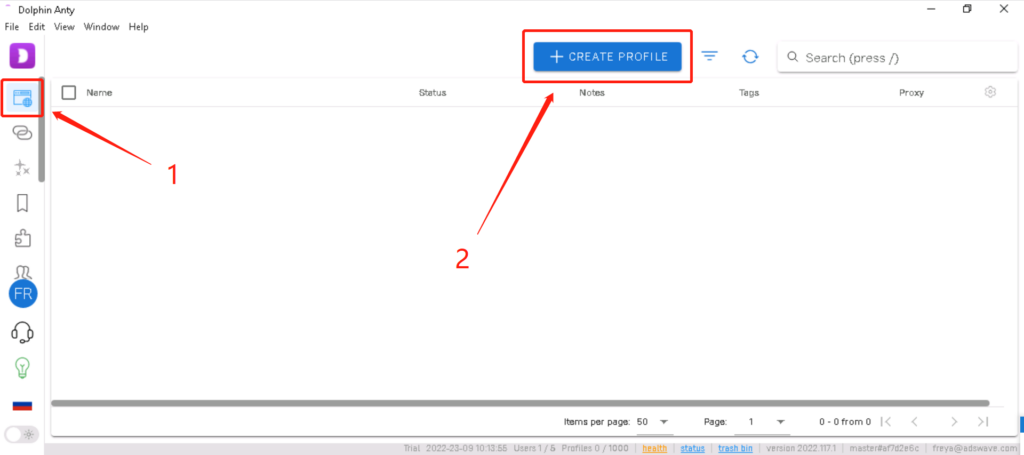
2. Log in to the Dolphin Anty fingerprint browser, open the [Browser] interface, and click the [Create profile] button.
3. Click [New profile]-[General settings] and enter the account name.
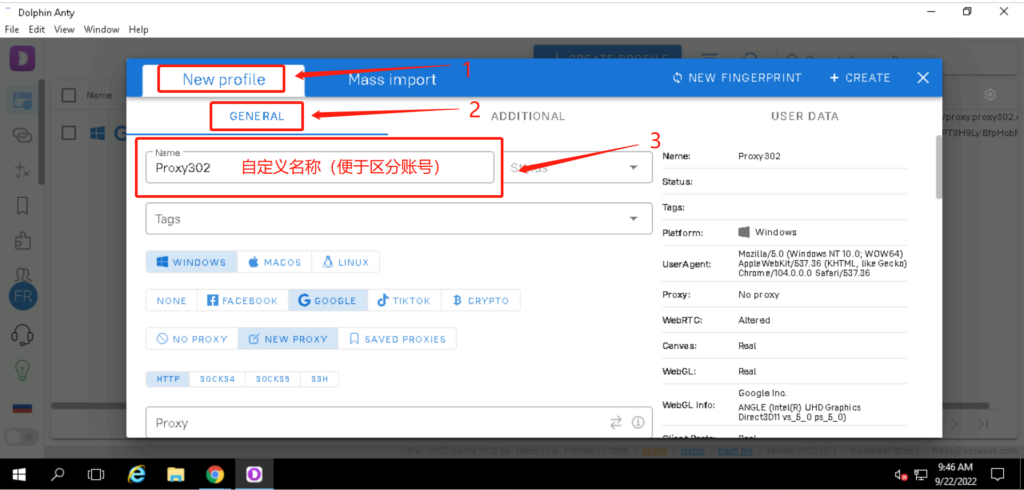
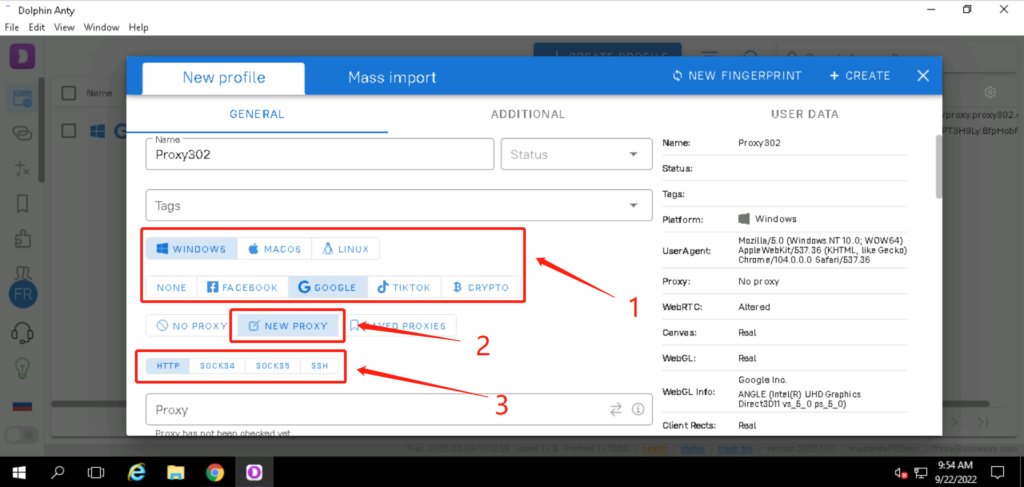
4. Select the corresponding computer system and the website to visit, click [Add proxy], and select the corresponding protocol (HTTP/SOCKS5).
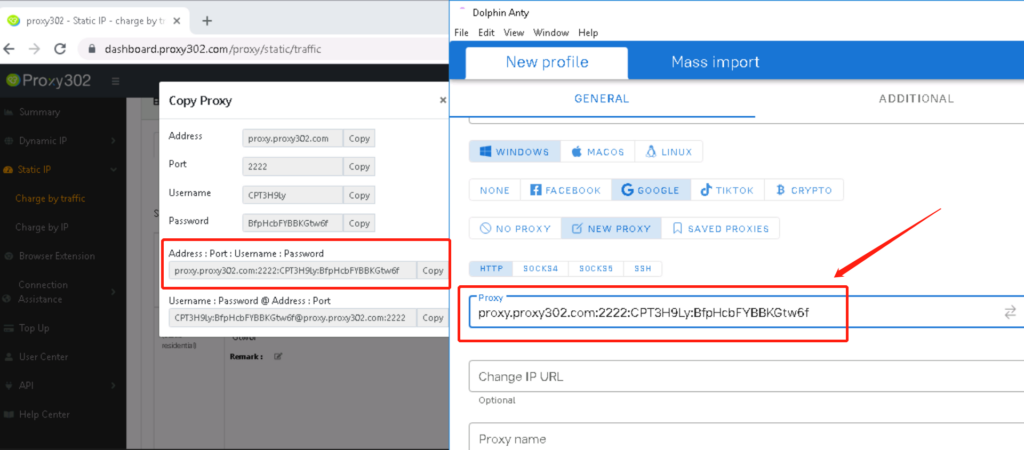
5. Copy the Proxy302 proxy information with one click and paste it into the [Proxy] input box in the Dolphin Anty fingerprint browser.
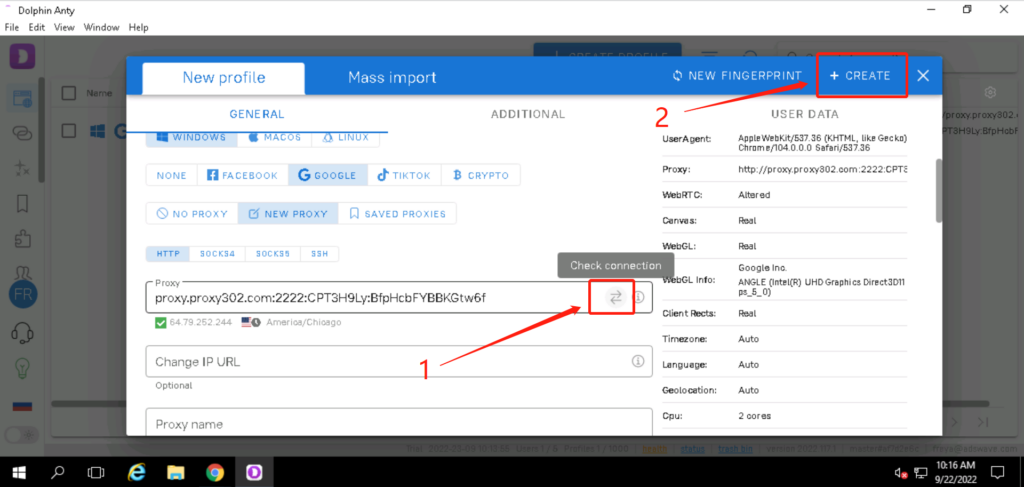
6. Click the icon on the far right to check if the proxy is connected successfully. If connected, detailed proxy information will appear below the [Proxy] input box. Click the [Create] button in the top right corner to save the data.
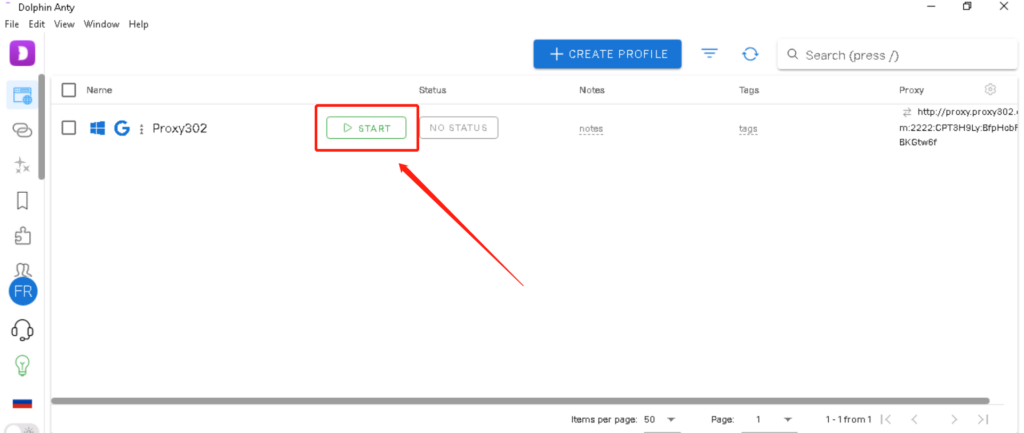
7. Click the [Open] button for the corresponding entry.
8. Enter "ipinfo.io" in the browser. If the IP address on the page matches the configured proxy IP, the proxy is set up successfully.