Remote PC - Connection Tutorial
Legacy guide: screenshots and helper-tool steps may differ from the current product.
This is an English translation of a legacy guide. For the original wording, read the Chinese original.
To provide users with a cleaner and more secure overseas network environment, Proxy302 has launched the [Remote PC] feature! Proxy302 [Remote PC] is essentially a physical computer device located abroad.
There are currently two ways to connect to [ Remote PC]: 1. Direct connection via web browser; 2. Connection using the computer's built-in remote desktop function. Both connection methods are available; you may choose either one.
Note:
1. When connecting directly via the web browser, some functions may not work properly, such as file uploads. If you need to upload files, please use the computer's built-in remote desktop function to connect.
2. The remote machine may contain some necessary pre-installed software, which is not a sign of previous usage.
Web-based Remote PC1. Log in to the Proxy302 client, click Connection Tools → Remote PC, select the Region, Configuration, and Purchase Duration for the Remote PC, then click the Create button.
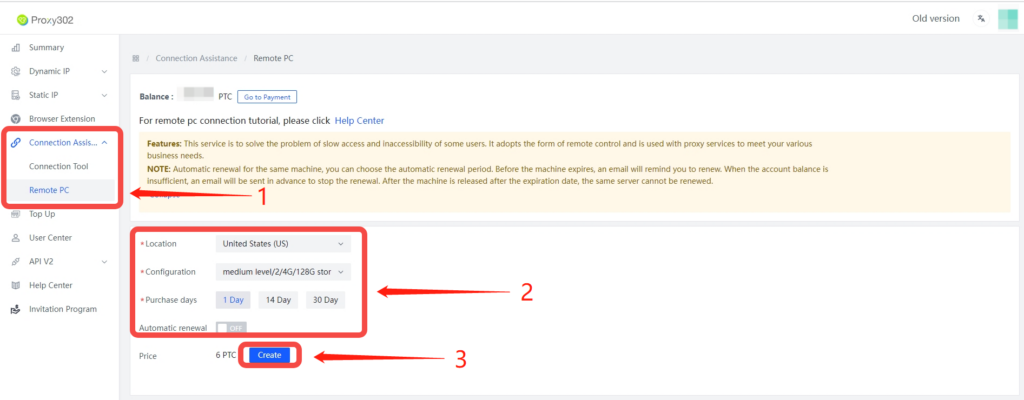
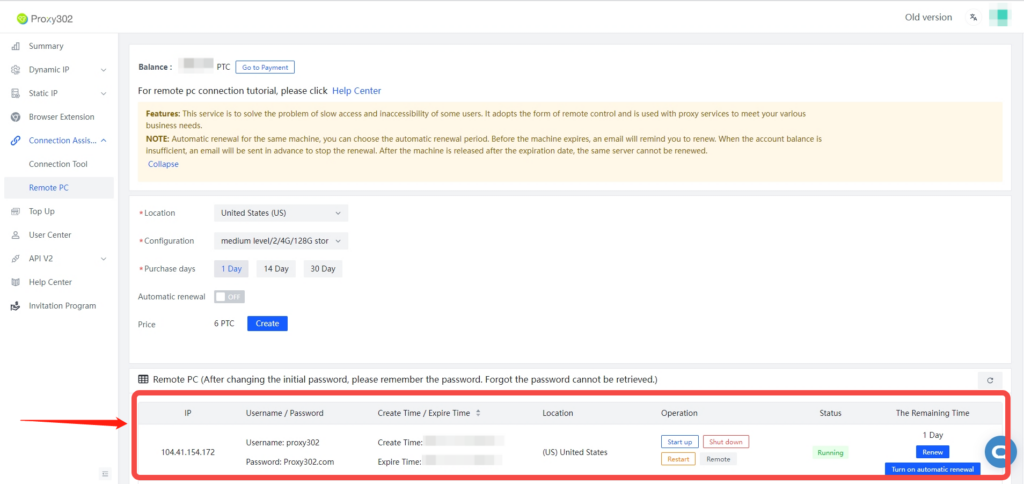
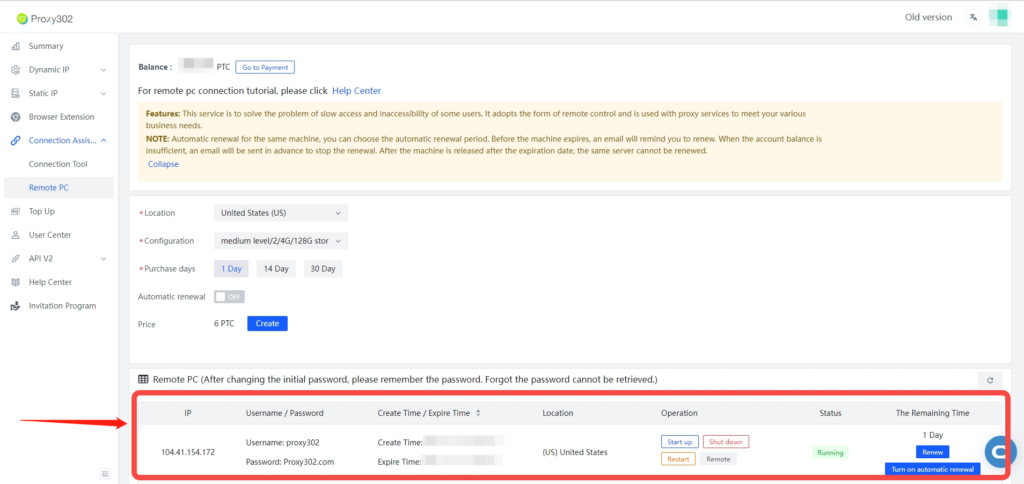
2. Wait 5~15 minutes for the system to create the Remote PC. If the following interface is displayed, the creation is successful.
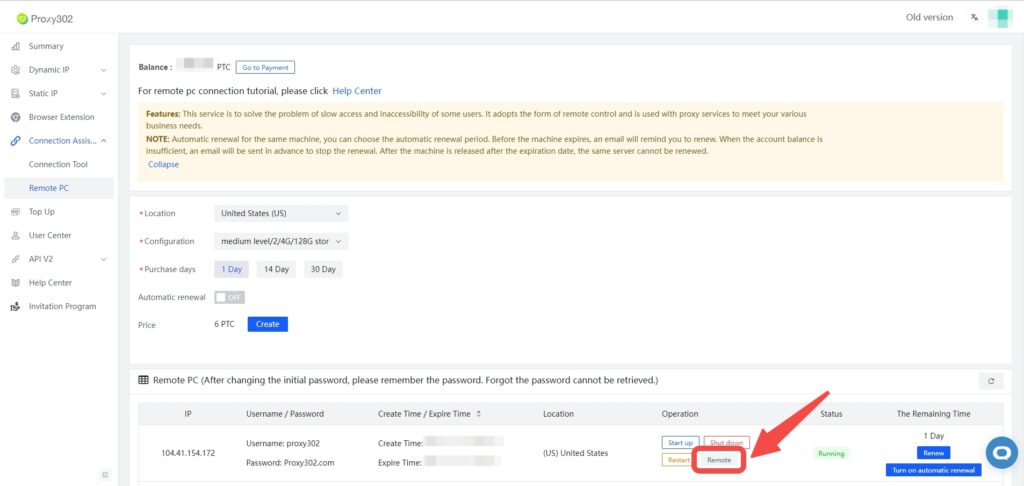
3. In the operation bar on the right, click the Remote Control button and wait for the web-based Remote PC interface to load.
4. In the web interface, enter the Remote PC information sequentially. Input the Proxy302 Remote PC information [IP, Username, Password] into the option boxes, then click the "Connect" button. Username: enter proxy302, Password: Proxy302.com (it is usually filled in automatically).
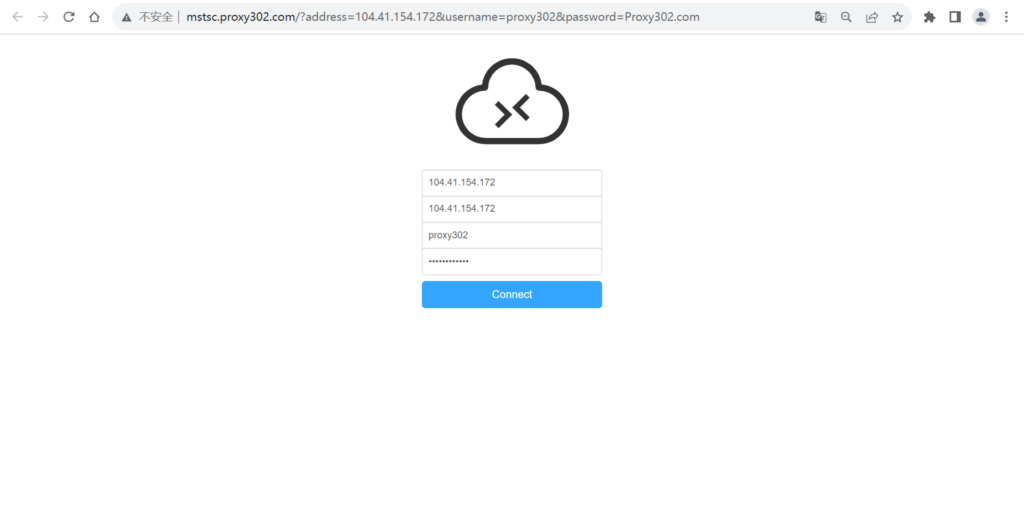
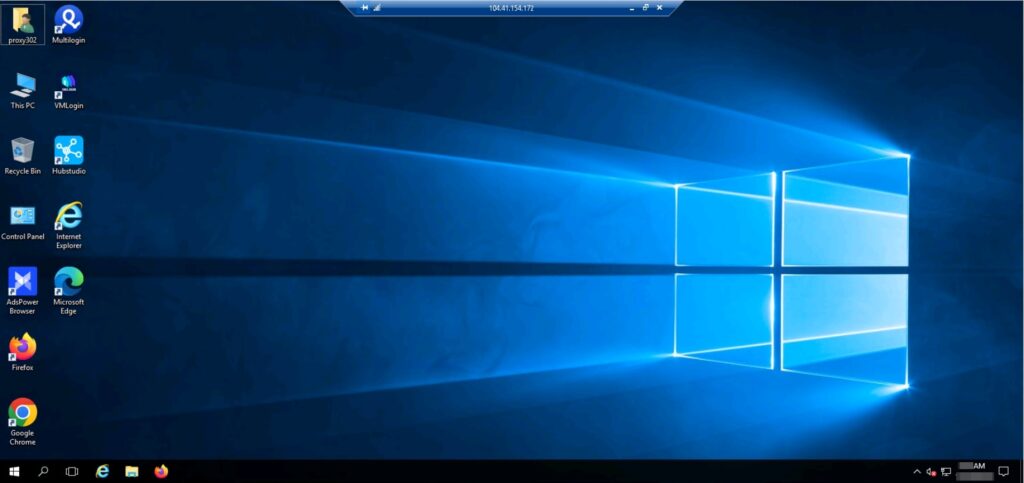
5. Wait 2~3 minutes. If the following interface is displayed, the Web-based Remote PC connection is successful.
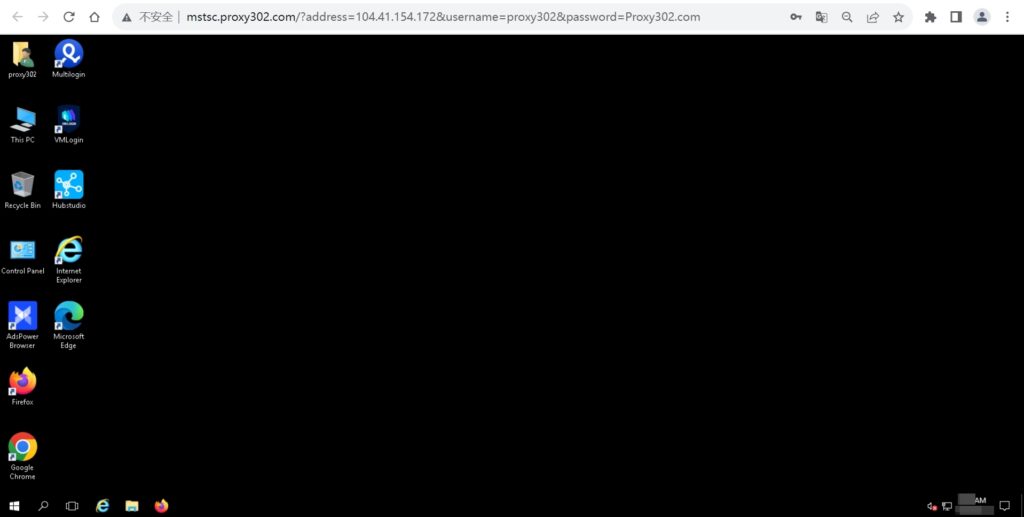
Desktop-based Remote PC
1. Log in to the Proxy302 client, click Connection Tools → Remote PC, select the Region, Configuration, and Purchase Duration for the Remote PC, then click the Create button.
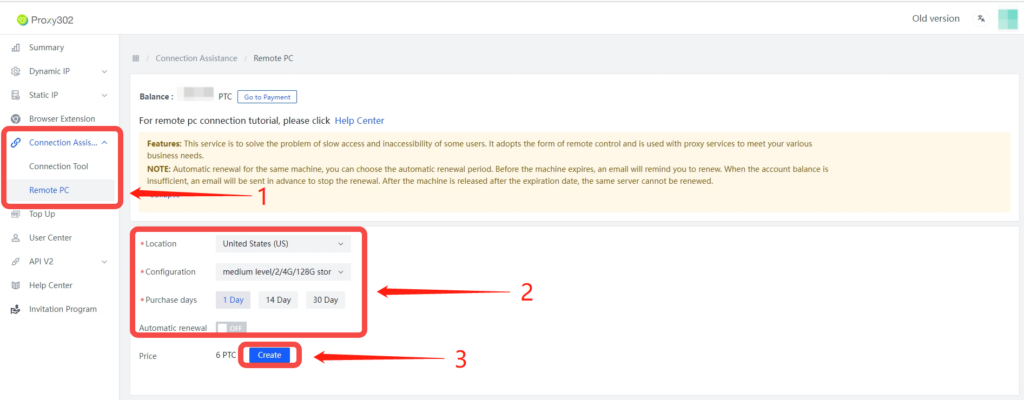
2. Wait 5~15 minutes for the system to create the Remote PC. If the following interface is displayed, the creation is successful.
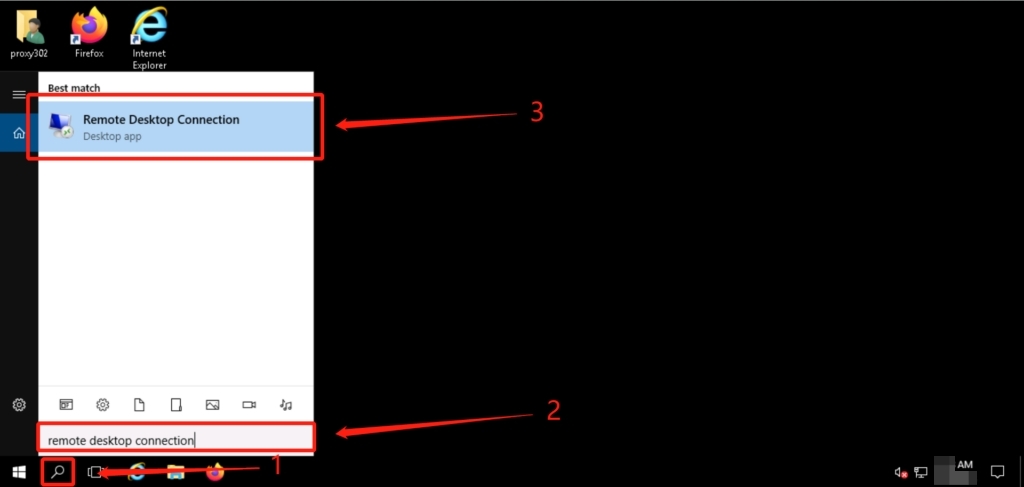
3. Click the Search button on your computer desktop, type Remote Desktop Connection in the search box, and click to open the Remote Desktop Connection tool.
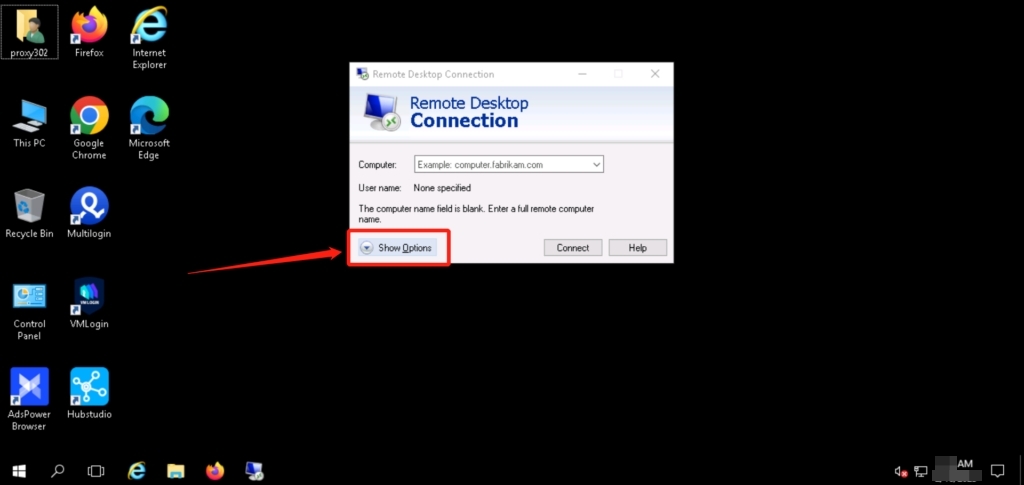
4. In the Remote Desktop Connection pop-up window, click Show Options.
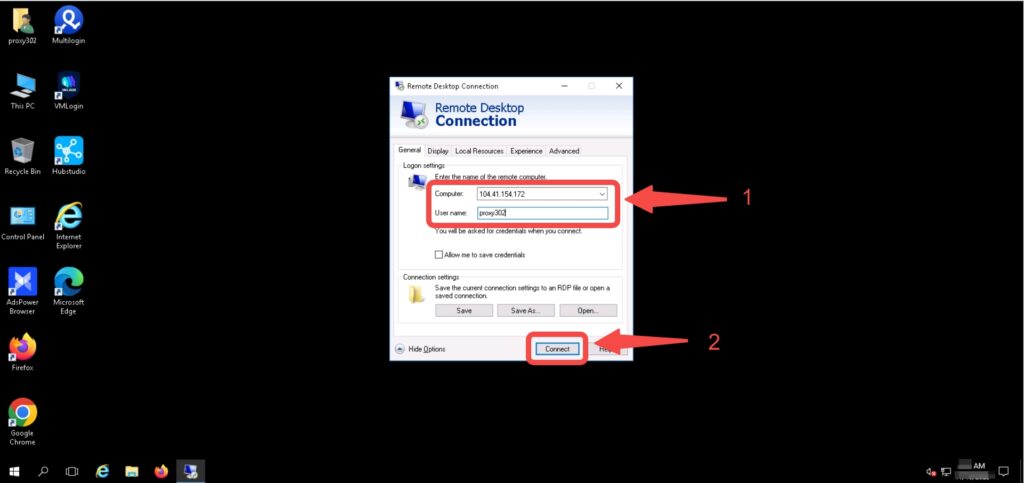
5. Enter the Remote PC information. Input the Proxy302 Remote PC information [IP, Username] into the pop-up window: Computer (C): enter the IP address, Username: enter proxy302, then click the "Connect" button.
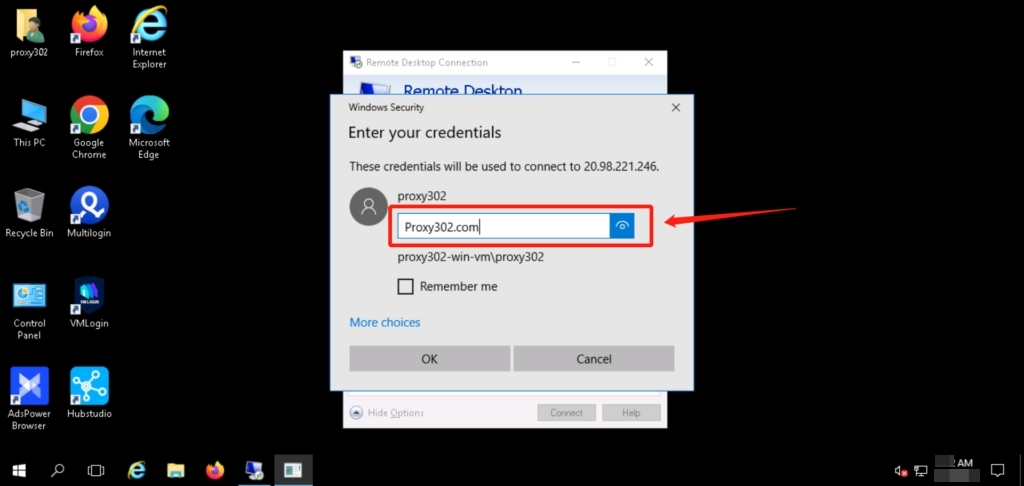
6. Enter the password: Proxy302.com, and click the "OK" button.
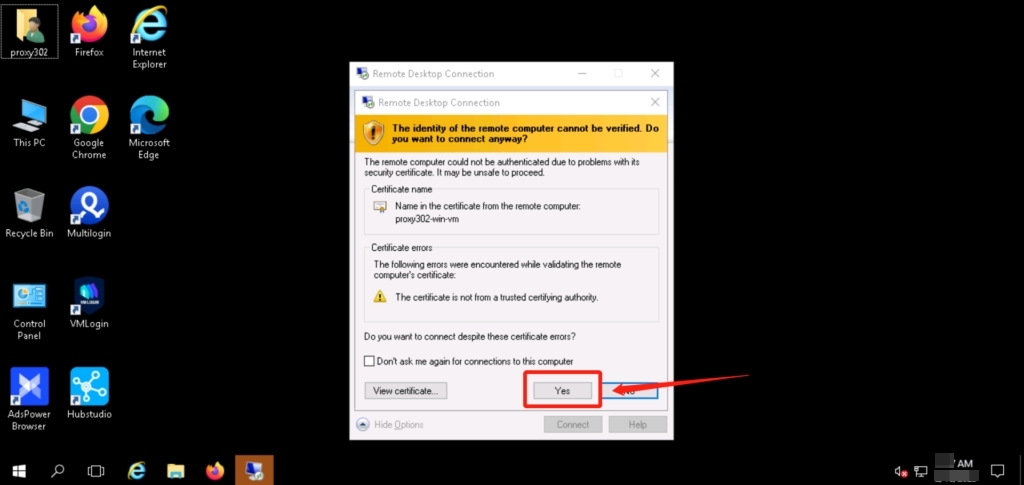
7. In the pop-up prompt box, click the "Yes" button.
8. If the following interface is displayed, the Desktop-based Remote PC connection is successful.